 BrushPop
How to color coloring pages in ChatGPT with BrushPop
Go beyond generating coloring pages in ChatGPT. Install BrushPop, choose your colors, fill the page in chat, and save your artwork to finish on iPhone.
 The BrushPop team
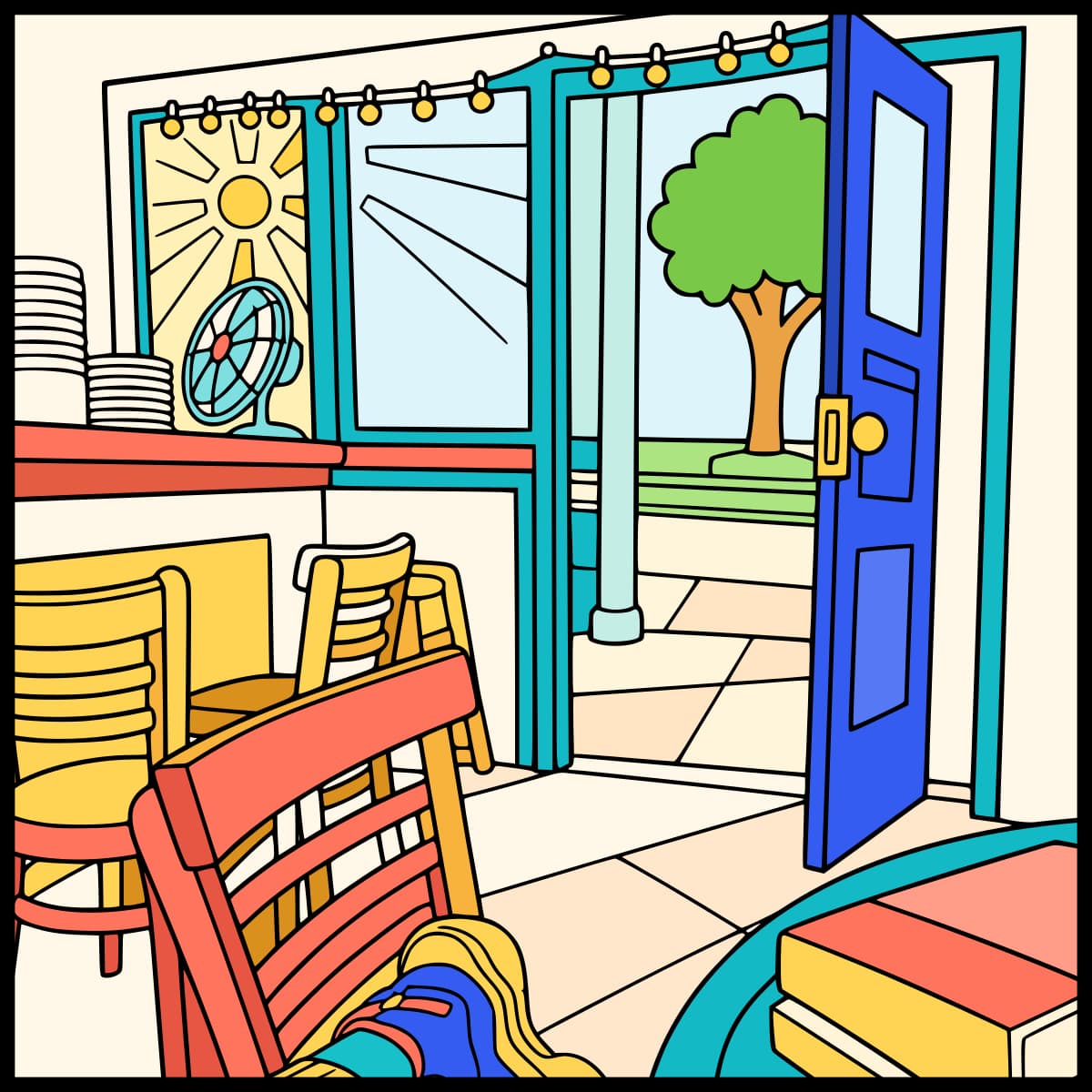
If you’ve been using ChatGPT to make coloring pages, your workflow may look like this: ask for a black-and-white drawing, download the image, then print it or open it in a drawing app to add your own colors.
BrushPop lets you generate a coloring page and color it yourself inside ChatGPT. Its plugin opens an interactive canvas in the conversation. You select a color and tap or click the areas you want to fill. You can change colors, undo a fill, zoom into details, and save the result.
Here’s how to install BrushPop and go from a prompt to a page you’ve colored yourself.
1. Install the BrushPop ChatGPT plugin
Start in ChatGPT on the web or in the desktop app:
- Sign in to ChatGPT and open Plugins.
- Search for BrushPop and open its listing.
- Select the plus (+) button to install it. Follow any connection prompts ChatGPT displays.
- Start a new chat after installation.
You can check your installation in the Installed section of Plugins. For help with ChatGPT’s setup screens, see OpenAI’s plugin installation instructions.
2. Select BrushPop and request an interactive coloring page
In the new chat, type @BrushPop and select BrushPop from the menu. Then describe the page you want to color. For your first page, use a simple subject with large shapes:
Use BrushPop to create an interactive coloring page of a cottage with flowers.
Including BrushPop and interactive coloring page makes the intended action clear. A request such as “make a coloring page” on its own may produce a regular image instead.
Wait for the BrushPop canvas to finish loading. You should see the drawing, a Colors palette, and a Save to BrushPop button. Those controls tell you that you’ve opened the interactive page.
3. Choose a color and fill the page
- Select a swatch in the Colors palette.
- Tap or click inside an enclosed area of the drawing to fill it.
- Select another swatch and fill the next area.
- Choose More colors to open the custom color picker when you need a different shade.
For the cottage example, select blue and click the roof, green and click the leaves, then yellow and click the flower centers. Each click fills one region; you don’t need to paint along the outline or send another message to ChatGPT.
To change a filled area, select a different color and click the same area again. The new fill replaces the previous one.
4. Use undo and zoom for smaller details
The canvas controls let you correct fills and reach small areas without generating a new page:
| What you want to do | Control to use |
|---|---|
| Reverse your last fill | Undo |
| Restore a fill you undid | Redo |
| Make small shapes easier to select | + to zoom in |
| See more of the page | − to zoom out |
| Reset the view | Click the zoom percentage |
If you keep filling the wrong shape, zoom in before clicking it. You can also ask BrushPop for a new page with “fewer details and larger enclosed shapes” when the original design is too intricate.
5. Save your coloring page to BrushPop
You can start creating and coloring a guest page without a BrushPop account. To keep that page in your library:
- Select Save to BrushPop below the canvas.
- Complete the account connection when ChatGPT prompts you. Use the BrushPop account you want to open on your iPhone.
- Return to the canvas. If the button still says Save to BrushPop after you’ve connected your account, select it again.
- Wait for Saved to your BrushPop library before leaving the page.
After the page is saved, subsequent color changes save automatically. If you see a connection or saving error, reconnect and wait for confirmation before closing the chat.
Common questions about coloring in ChatGPT
Can ChatGPT just color the image for me?
You can ask ChatGPT to generate a colored version of an image. That produces another image with the colors chosen through your prompt. BrushPop is for filling the page yourself: you choose a swatch and decide exactly which region receives it.
Can I color a page I already generated in ChatGPT?
This guide uses a new page created through BrushPop. The plugin’s current workflow does not import an existing ChatGPT image or an uploaded coloring sheet into its canvas. To make an interactive version, describe the subject to BrushPop and generate a new page.
The page stopped loading. Should I generate it again?
If the canvas shows Check page again, try that first to check the existing page. An expired guest page needs a new generation. If you’ve reached a creation limit, follow the message shown in the canvas; repeatedly asking for new pages won’t remove that limit.
Continue on iPhone for more coloring features
After saving your page, select Open BrushPop in the canvas to continue the same painting on iPhone with your colors intact. Sign in to the same BrushPop account. If you install the app during this step, return to the continuation page afterward and tap Open BrushPop again.
The iOS app also gives you ways to find and share pages beyond the ChatGPT conversation:
- Browse pages by category. Find subjects in Animals, Nature, Fantasy, Abstract, and more without writing a prompt first.
- Get ideas from emojis. Use emoji inspiration to turn a random combination into a new coloring-page idea.
- Explore and share artwork. Browse other people’s creations and share your own with the BrushPop community.
Download BrushPop for iPhone to continue your saved page, browse more designs, and share what you’ve colored.
The BrushPop team